Paying an Invoice Online
The Pay Now flow, card surcharges, receipts, and why paying early keeps your schedule.
Last updated 08/05/26
Paying an invoice takes about a minute: open it, click Pay Now, and complete the secure card payment powered by Stripe.
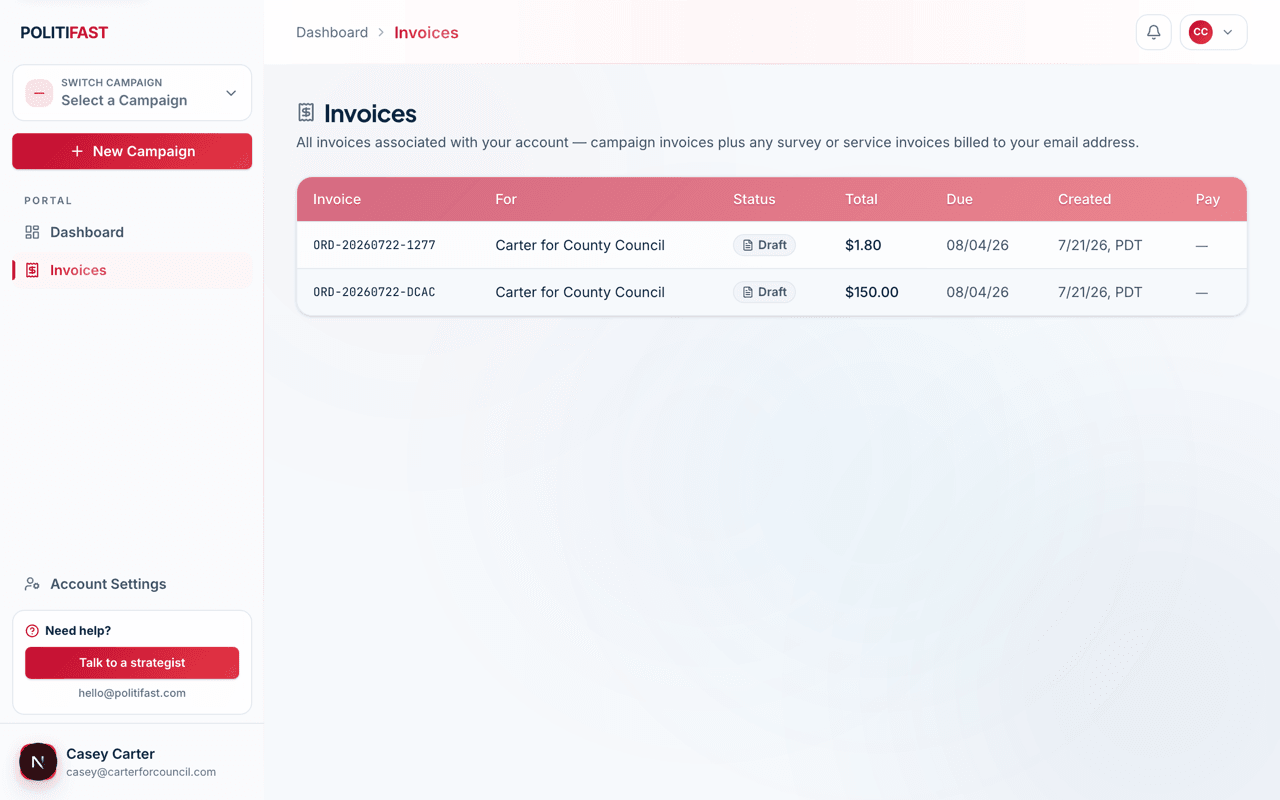
The Pay Now flow
- Open the invoice from your Billing tab or /portal/invoices.
- Click Pay Now.
- Enter your card (or pick a saved one) and confirm. The exact total — including any applicable surcharge — is shown before you confirm anything.
- You'll see the paid confirmation, and a receipt link is kept on the invoice.
About card surcharges
Credit-card payments may include a processing surcharge, always displayed before you pay. Debit cards and bank payments avoid it. For larger amounts like consulting retainers, bank transfer is the economical choice — contact us to arrange it.
When payment unlocks work
Some work is irreversible once it starts — a text blast, a mail drop — so it begins only after payment clears. If your send or drop has a date attached, pay as soon as the invoice is ready; card payments clear immediately, while bank payments can take a few business days.
If the invoice isn't payable yet
A Draft invoice has no Pay button — the team is still finalizing amounts (common for per-piece mail, where the rate is confirmed after design approval). Nothing is wrong; see Why Isn't My Invoice Payable Yet? in FAQ & Troubleshooting.
Receipts and records
Every paid invoice keeps its receipt and PDF available in your portal permanently — handy for your treasurer's records and your compliance filings.
Prefer a different payment method?
Bank transfer, check, or something else — email us and we'll set it up for the invoice in question.