Your Profile, Avatar, and Email Address
How to update your name, organization, address, and avatar — and what to do when you need your sign-in email changed.
Last updated 08/05/26
Your profile is what your PolitiFast team and your campaign teammates see when they work with you, so it pays to keep it current. Everything described here lives in your portal under Settings, on the Profile tab.
Updating your profile
Open Settings in your portal and select the Profile tab. From there you can edit:
- Your name — how you appear across the portal, in team lists, and on activity records.
- Organization — your firm, committee, or company name.
- Address — your mailing address, used when we need to reach you outside the portal.
- Avatar — upload a photo so teammates can recognize you at a glance. A clear headshot works best; it displays as a small circle throughout the portal.
Save your changes and they take effect immediately.
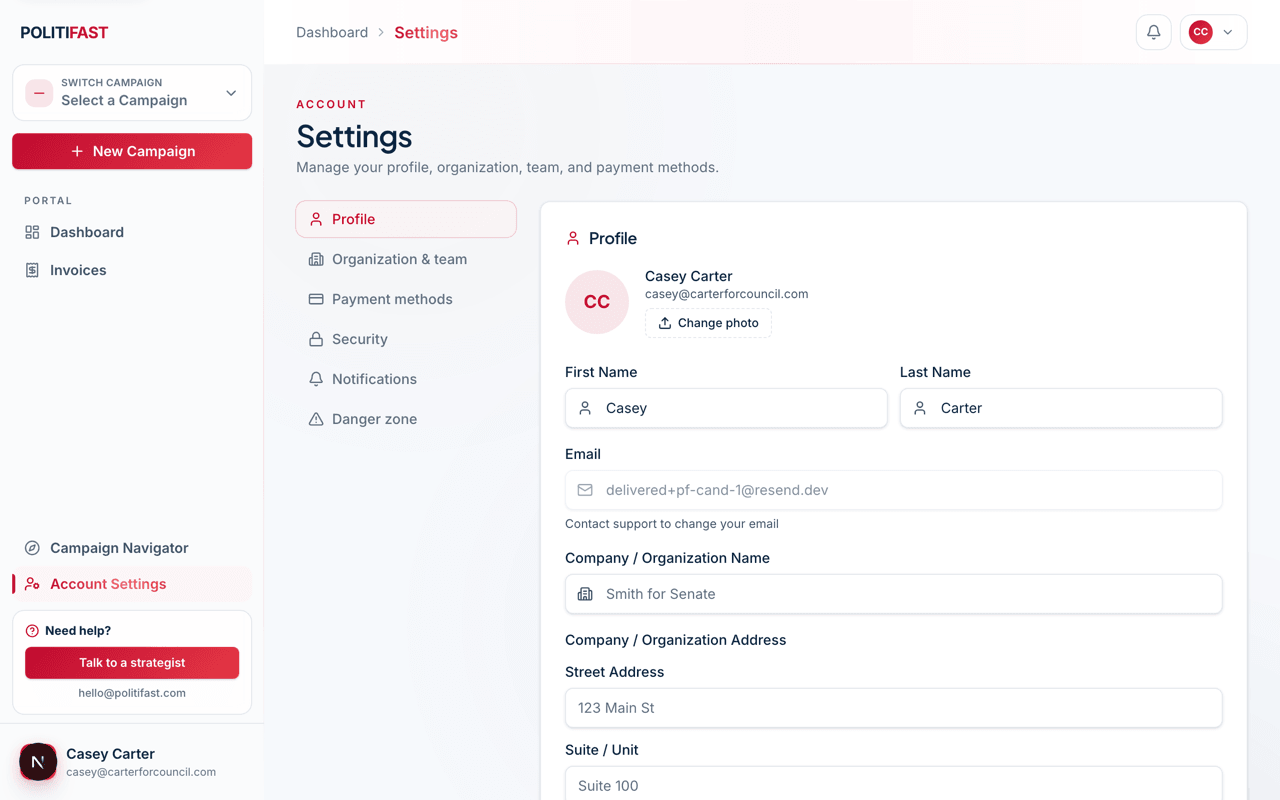
Your sign-in email is read-only — here's why
The email address on your account is the one thing on the Profile tab you cannot edit yourself, and that's deliberate. Your email is your sign-in identity: it's how the portal knows you're you, and it's where security-sensitive messages like password resets go. Letting anyone change it from inside the portal would give an attacker who briefly gained access a way to lock you out of your own account permanently.
If you need your email changed — you've switched firms, retired an old address, or simply typed it wrong at signup — email us at hello@politifast.com, ideally from the address currently on the account. We'll verify it's really you and make the change on our end. This is one of the most common requests we get, so don't hesitate to ask.
Firm details that prefill your client campaigns
If your account is a consultant, campaign manager, or caucus account, your Profile tab also holds your firm or organization details. These do more than fill out your profile: when you create a new campaign for a client, the setup wizard offers a Use my firm info shortcut that prefills contact and organization fields from what you've saved here.
Keeping your firm details accurate means every new client campaign starts with clean, consistent information — and saves you retyping the same address for the tenth time. If you manage several campaigns, take two minutes to get this right once.
What about passwords and security?
Passwords, Google sign-in, and two-factor authentication live on the Security tab, not Profile. See Passwords and Google Sign-In and Setting Up Two-Factor Authentication in this category for the full walkthrough.
Need your email changed?
Send a note to hello@politifast.com from your current account email and we'll take care of it. We respond within 24 hours on business days.