Setting Up Two-Factor Authentication
Why campaigns are phishing targets and how to enroll an authenticator app in two minutes.
Last updated 08/05/26
Political campaigns are among the most phished organizations in the country — your account controls voter lists, spending, and your public-facing website, and opposition researchers know it. Two-factor authentication (2FA) is the single highest-value security step you can take, and it takes about two minutes.
What it is
With 2FA on, signing in takes your password plus a six-digit code from an authenticator app on your phone. A stolen password alone is no longer enough to get in.
Enrolling
- Install an authenticator app if you don't have one (Google Authenticator, Microsoft Authenticator, 1Password, and similar all work).
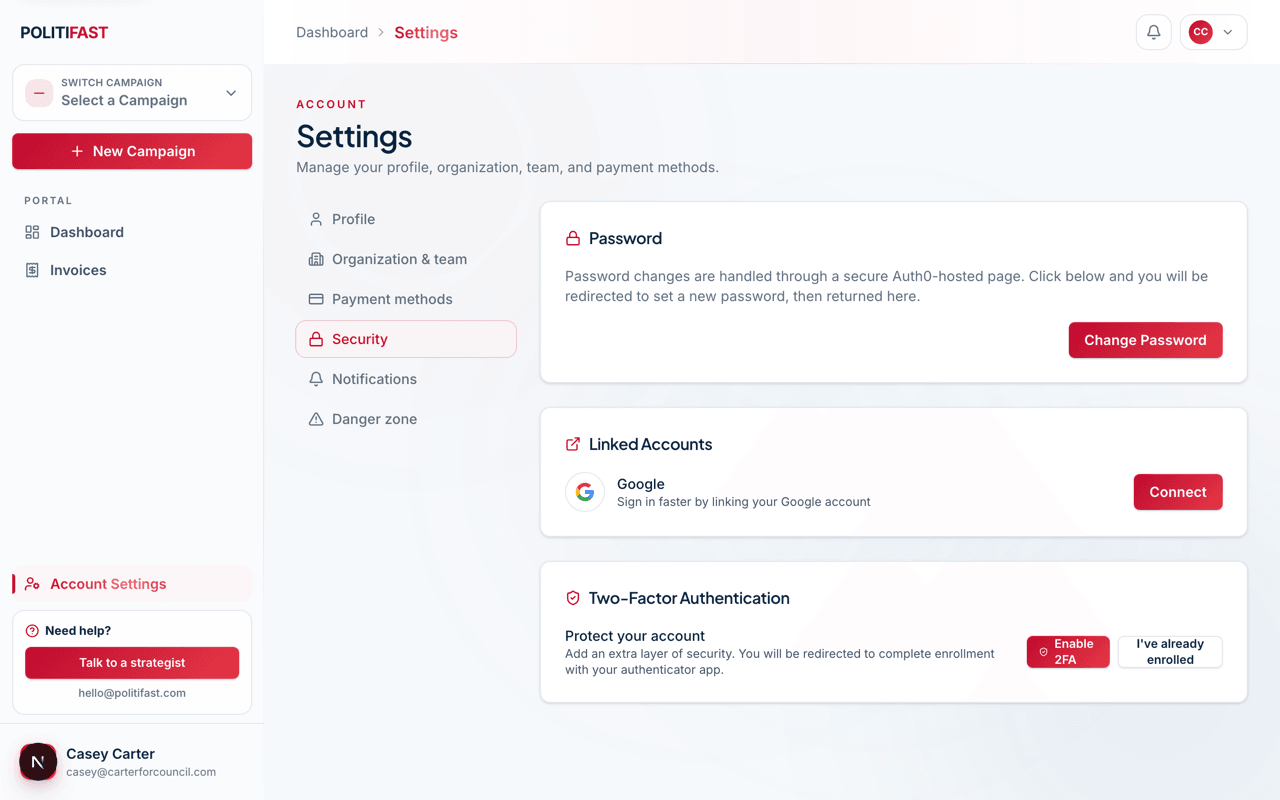
- Go to Settings → Security and click Enable 2FA.
- You'll pass through secure sign-in and be shown a QR code — scan it with the app.
- Enter the six-digit code the app shows to confirm. If your settings page doesn't reflect it immediately, use Sync enrollment on return.
From then on, sign-ins ask for the current code from your app.
Managing or disabling
The same Security tab lets you review and disable 2FA. Before wiping or replacing your phone, either move the authenticator entry to the new device or disable and re-enroll — doing it in that order avoids a lockout.
Who on your team should enroll
Everyone — but start with Owners and Admins, and anyone who touches money or messaging. One compromised login is all it takes.
Lost your phone?
If you can't produce a code and you're locked out, email us from your account address — we have a recovery procedure.