Requesting Website Updates
How to submit a website change request, what happens after you submit, and how to write a request that gets quoted and shipped fast.
Last updated 08/05/26
Campaigns move fast, and your website should keep up. When something on your site needs to change — a new endorsement, an event, an updated photo — you submit it through the update request flow, and your team handles the rest.
How the update flow works
From your campaign in the portal, open Request a Website Update and describe the change you need. Here's what happens after you hit submit:
- Your team reviews the request and sends you a quote for the work.
- You review the quote. Nothing is charged until you approve it — a request is never a commitment.
- Once you approve, the change goes into the queue and your team makes the update.
- You get confirmation when the change is live, so you can check it yourself.
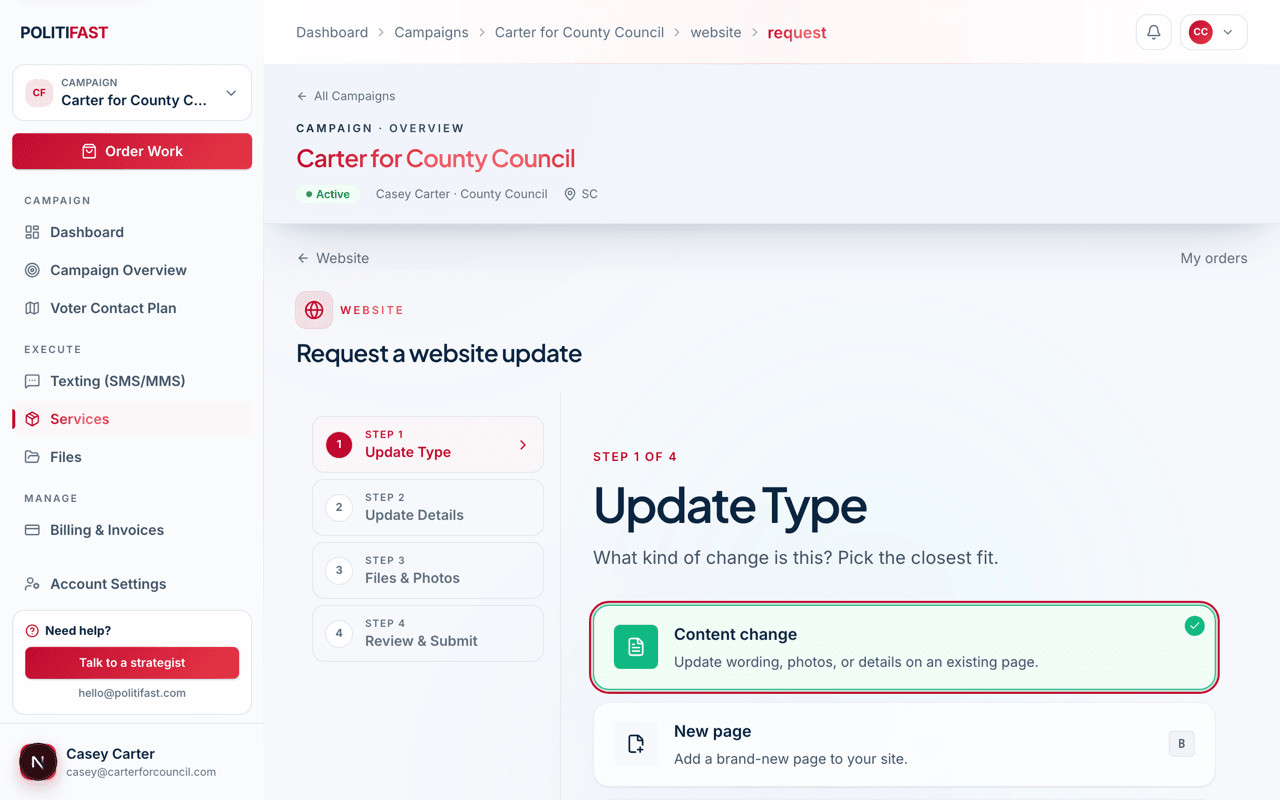
The quote-first step exists so there are never surprises on an invoice. A quick text swap and a new five-page issue section are very different jobs, and you'll always see the cost of yours before you commit.
Typical requests
Most update requests fall into a few familiar buckets:
- A new endorsement — the endorser's name, title, and quote added to your endorsements page
- An upcoming event — a meet-and-greet, town hall, or fundraiser added to the site
- A photo swap — replacing the headshot or updating campaign photos after a shoot
- A new issue page — adding a position on an issue that's emerged in the race
If your request doesn't fit a bucket, submit it anyway. The form is for anything on the site, and your team will tell you if it's really a bigger conversation.
How to write a request that gets quoted fast
The speed of your quote depends almost entirely on how specific your request is. Vague requests bounce back with clarifying questions; precise ones get quoted the same day. Three habits that help:
- Name the exact page. "The Issues page" or "the homepage banner" — not "the site."
- Paste the exact text. If you want new wording, write the final wording in the request. "Make the bio sound stronger" requires a back-and-forth; "replace the second paragraph with this:" does not.
- Upload final images to Files first. Put the new photo on your campaign's Files page, then mention the filename in your request so there's no ambiguity about which file to use.
One more tip: if you have several small changes, list each one separately inside a single request. "Fix these four things" with a numbered list is easy to quote. Four separate one-line requests spread over a week is slower for everyone.
Need a change that's hard to describe?
If your update is bigger than a form field — a redesign, a new section, a rethink — book a call and your team will scope it with you directly.